Introduction
In late 2020 – early 2021 I wrote an inventory system in Python for the Formula SAE team I was in (GitHub link to the project). To make distribution easier, I used Pyinstaller to compile the Python program into a binary executable for Windows. The setup worked on several different PCs that don’t have Python environments and I never heard anyone having problems opening it. One day, it won’t work on a newly installed Windows 10 computer that I set up in the workshop. This post documents the steps I took to troubleshoot the problem and the resolution.
The Problem
When the compiled executable is run on the newly set up PC, an import error gets raised:
Traceback (most recent call last):
  File "PyInstaller\loader\pyimod04_ctypes.py", line 53, in __init__
  File "ctypes\__init__.py", line 348, in __init__
OSError: [WinError 126] The specified module could not be found

The above exception was the direct cause of the following exception:

Traceback (most recent call last):
  File "pylibdmtx\dmtx_library.py", line 38, in load
  File "ctypes\__init__.py", line 426, in LoadLibrary
  File "PyInstaller\loader\pyimod04_ctypes.py", line 55, in __init__
pyimod04_ctypes.PyInstallerImportError: Failed to load dynlib/dll 'libdmtx-64.dll'. Most likely this dynlib/dll was not found when the application was frozen.

During handling of the above exception, another exception occurred:

Traceback (most recent call last):
  File "PyInstaller\loader\pyimod04_ctypes.py", line 53, in __init__
  File "ctypes\__init__.py", line 348, in __init__
OSError: [WinError 126] The specified module could not be found

The above exception was the direct cause of the following exception:

Traceback (most recent call last):
  File "Electrons_inventory.py", line 9, in <module>
  File "<frozen importlib._bootstrap>", line 971, in _find_and_load
  File "<frozen importlib._bootstrap>", line 955, in _find_and_load_unlocked
  File "<frozen importlib._bootstrap>", line 665, in _load_unlocked
  File "PyInstaller\loader\pyimod03_importers.py", line 495, in exec_module
  File "pylibdmtx\pylibdmtx.py", line 10, in <module>
  File "<frozen importlib._bootstrap>", line 971, in _find_and_load
  File "<frozen importlib._bootstrap>", line 955, in _find_and_load_unlocked
  File "<frozen importlib._bootstrap>", line 665, in _load_unlocked
  File "PyInstaller\loader\pyimod03_importers.py", line 495, in exec_module
  File "pylibdmtx\wrapper.py", line 70, in <module>
  File "pylibdmtx\wrapper.py", line 58, in libdmtx_function
  File "pylibdmtx\wrapper.py", line 39, in load_libdmtx
  File "pylibdmtx\dmtx_library.py", line 41, in load
  File "ctypes\__init__.py", line 426, in LoadLibrary
  File "PyInstaller\loader\pyimod04_ctypes.py", line 55, in __init__
pyimod04_ctypes.PyInstallerImportError: Failed to load dynlib/dll 'C:\\Users\\rclab\\Desktop\\Electrons_inventory\\libdmtx-64.dll'. Most likely this dynlib/dll was not found when the application was frozen.
[5272] Failed to execute script 'Electrons_inventory' due to unhandled exception!
My Setup
When I first used Pyinstaller to compile Python programs, I used the auto-py-to-exe GUI tool to generate the Pyinstaller command and the corresponding arguments. The originally generated command was this:
pyinstaller --noconfirm --onedir --console --icon "J:/Documents/OneDrive/project files/FSAE/2021/Inventory_GitHub/Electrons-Inventory/inventory_app/favicon.ico" --paths "J:/Documents/OneDrive/project files/FSAE/2020/Inventory/2020_inventory/venv/Lib/site-packages" --add-data "J:/Documents/OneDrive/project files/FSAE/2020/Inventory/2020_inventory/inventory_app/favicon.ico;." --add-data "J:/Documents/OneDrive/project files/FSAE/2020/Inventory/2020_inventory/inventory_app/magnifying-glass.png;." --add-data "J:/Documents/OneDrive/project files/FSAE/2020/Inventory/2020_inventory/inventory_app/server.pem;." --add-data "J:/Documents/OneDrive/project files/FSAE/2020/Inventory/2020_inventory/inventory_app/storage.png;." --add-data "J:/Documents/OneDrive/project files/FSAE/2020/Inventory/2020_inventory/inventory_app/takeaway.png;." --add-binary "J:/Documents/OneDrive/project files/FSAE/2020/Inventory/2020_inventory/venv/Lib/site-packages/pylibdmtx/libdmtx-64.dll;." "J:/Documents/OneDrive/project files/FSAE/2021/Inventory_GitHub/Electrons-Inventory/inventory_app/Electrons_inventory.py"Looks like the auto-py-to-exe tool used absolute paths by default which is not ideal. I later manually tweaked the command to make it work with relative paths. I’ll include a working command at the end of this post with relative paths.
Troubleshooting
The first step of troubleshooting was to reproduce the problem elsewhere so I could more easily find out what was wrong in my own time. The exact same binary for the inventory system has been working fine before on other computers and when I tested with some PCs I have access to, it also worked. I then tried setting up a virtual machine on my PC and installed Windows 10 again using the same media. The problem showed up again!
The error messages seem to indicate the library libdmtx-64.dll wasn’t there during the compiling process. It’s part of the library libdmtx for reading data matrix codes from images, used in the inventory project to scan the codes on DigiKey bags. Therefore, I couldn’t just remove the module, recompile and see if the program starts up, at least not easily.
I double-checked my build setup to confirm that the file was, indeed there during the build, so something else is probably causing this issue.
Next, I checked the Pyinstaller documentation for any hints that might indicate what was wrong. I noticed that I could add build flags that add debug outputs during program startup, so I added the --debug=all flag to the end of the build command. Here’s the output: (only showing relevant sections)
...
import 'pylibdmtx.dmtx_library' # <_frozen_importlib_external.SourcelessFileLoader object at 0x000001ADBF57C240>
Traceback (most recent call last):
  File "PyInstaller\loader\pyimod04_ctypes.py", line 53, in __init__
  File "c:\users\ray\appdata\local\programs\python\python36\lib\ctypes\__init__.py", line 348, in __init__
OSError: [WinError 126] The specified module could not be found

The above exception was the direct cause of the following exception:

Traceback (most recent call last):
  File "J:\Documents\OneDrive\project files\FSAE\2020\Inventory\2020_inventory\venv\Lib\site-packages\pylibdmtx\dmtx_library.py", line 38, in load
  File "c:\users\ray\appdata\local\programs\python\python36\lib\ctypes\__init__.py", line 426, in LoadLibrary
  File "PyInstaller\loader\pyimod04_ctypes.py", line 55, in __init__
pyimod04_ctypes.PyInstallerImportError: Failed to load dynlib/dll 'libdmtx-64.dll'. Most likely this dynlib/dll was not found when the application was frozen.

During handling of the above exception, another exception occurred:

Traceback (most recent call last):
  File "PyInstaller\loader\pyimod04_ctypes.py", line 53, in __init__
  File "c:\users\ray\appdata\local\programs\python\python36\lib\ctypes\__init__.py", line 348, in __init__
OSError: [WinError 126] The specified module could not be found

The above exception was the direct cause of the following exception:

Traceback (most recent call last):
  File "Electrons_inventory.py", line 9, in <module>
  File "<frozen importlib._bootstrap>", line 971, in _find_and_load
  File "<frozen importlib._bootstrap>", line 955, in _find_and_load_unlocked
  File "<frozen importlib._bootstrap>", line 665, in _load_unlocked
  File "<frozen importlib._bootstrap_external>", line 678, in exec_module
  File "<frozen importlib._bootstrap>", line 219, in _call_with_frames_removed
  File "J:\Documents\OneDrive\project files\FSAE\2020\Inventory\2020_inventory\venv\Lib\site-packages\pylibdmtx\pylibdmtx.py", line 10, in <module>
  File "<frozen importlib._bootstrap>", line 971, in _find_and_load
  File "<frozen importlib._bootstrap>", line 955, in _find_and_load_unlocked
  File "<frozen importlib._bootstrap>", line 665, in _load_unlocked
  File "<frozen importlib._bootstrap_external>", line 678, in exec_module
  File "<frozen importlib._bootstrap>", line 219, in _call_with_frames_removed
  File "J:\Documents\OneDrive\project files\FSAE\2020\Inventory\2020_inventory\venv\Lib\site-packages\pylibdmtx\wrapper.py", line 70, in <module>
  File "J:\Documents\OneDrive\project files\FSAE\2020\Inventory\2020_inventory\venv\Lib\site-packages\pylibdmtx\wrapper.py", line 58, in libdmtx_function
  File "J:\Documents\OneDrive\project files\FSAE\2020\Inventory\2020_inventory\venv\Lib\site-packages\pylibdmtx\wrapper.py", line 39, in load_libdmtx
  File "J:\Documents\OneDrive\project files\FSAE\2020\Inventory\2020_inventory\venv\Lib\site-packages\pylibdmtx\dmtx_library.py", line 41, in load
  File "c:\users\ray\appdata\local\programs\python\python36\lib\ctypes\__init__.py", line 426, in LoadLibrary
  File "PyInstaller\loader\pyimod04_ctypes.py", line 55, in __init__
pyimod04_ctypes.PyInstallerImportError: Failed to load dynlib/dll 'C:\\Users\\rclab\\AppData\\Local\\Temp\\_MEI11122\\pylibdmtx\\libdmtx-64.dll'. Most likely this dynlib/dll was not found when the application was frozen.
[3228] Failed to execute script 'Electrons_inventory' due to unhandled exception!
[3228] LOADER: OK.
[3228] LOADER: Manually flushing stdout and stderr
[3228] LOADER: Cleaning up Python interpreter.
# clear builtins._
...
As shown above, it didn’t really offer any additional information.
I then did some experimentation (starting with only the main executable file and adding DLLs until the same error appeared) to see how the error messages change. I noticed that the error message wasn’t always accurate at indicating where the root problem was. For example, if VCRUNTIME140.dll was missing, the program loader would throw an error while loading the python36.dll (“LoadLibrary: the specified module could not be found”).
I also tried shuffling around the import order at the beginning of the python file – the other packages (cv2 and numpy) still imported as expected, so it was unlikely a problem with the ctypes package itself, even though it threw the error during program loading.
I then tried Googling the OSError itself, which led me to this StackOverflow question, and the cause of the op’s problem was due to dependencies of the offending DLL not being met. The op used a tool from Visual Studio (dumpbin), but I didn’t have a VS installation. With some more searching, I came across the Dependency Walker tool and gave it a shot in the VM:
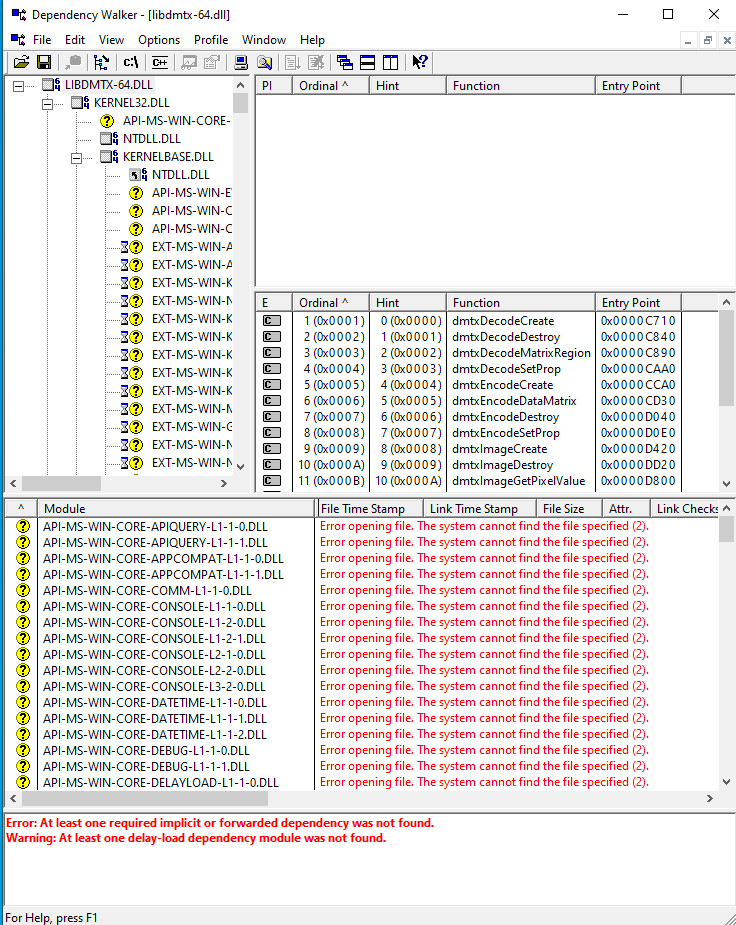
As shown in the above image, the dependency walker couldn’t find a long list of DLLs which doesn’t look quite right for a simple library. I also ran the tool on a working PC with similar results, leading me to think that it may not be working correctly.
With a bit more searching, I came to this SO question, which suggested running ldd in a git bash window. I have that! I then ran it on a working machine as I didn’t have git installed in the VM:
$ ldd libdmtx-64.dll
        ntdll.dll => /c/WINDOWS/SYSTEM32/ntdll.dll (0x7ff8d9eb0000)
        KERNEL32.DLL => /c/WINDOWS/System32/KERNEL32.DLL (0x7ff8d9630000)
        KERNELBASE.dll => /c/WINDOWS/System32/KERNELBASE.dll (0x7ff8d78b0000)
        MSVCR120.dll => /c/WINDOWS/SYSTEM32/MSVCR120.dll (0x7ff8a8b00000)
In the above output, the first three dependencies look like Windows system files, while the fourth looks like a Visual C/C++ Runtime library, which probably won’t come with Windows installations by default. I then checked whether this file was in my release folder structure, and it wasn’t! After copying it to the same directory in the VM, the app started up normally 😀
Conclusion
In summary, the problem was due to the missing dependency of the libdmtx DLL, which didn’t get picked up by the pyinstaller. It can be fixed by adding an --add-binary argument pointing to the msvcr120.dll file. The final pyinstaller command looks like this:
pyinstaller --noconfirm --onedir --console --icon "favicon.ico" --paths "J:/Documents/OneDrive/project files/FSAE/2020/Inventory/2020_inventory/venv/Lib/site-packages" --add-data "favicon.ico;." --add-data "magnifying-glass.png;." --add-data "server.pem;." --add-data "storage.png;." --add-data "takeaway.png;." --add-binary "C:/Windows/System32/msvcr120.dll;." "Electrons_inventory.py"